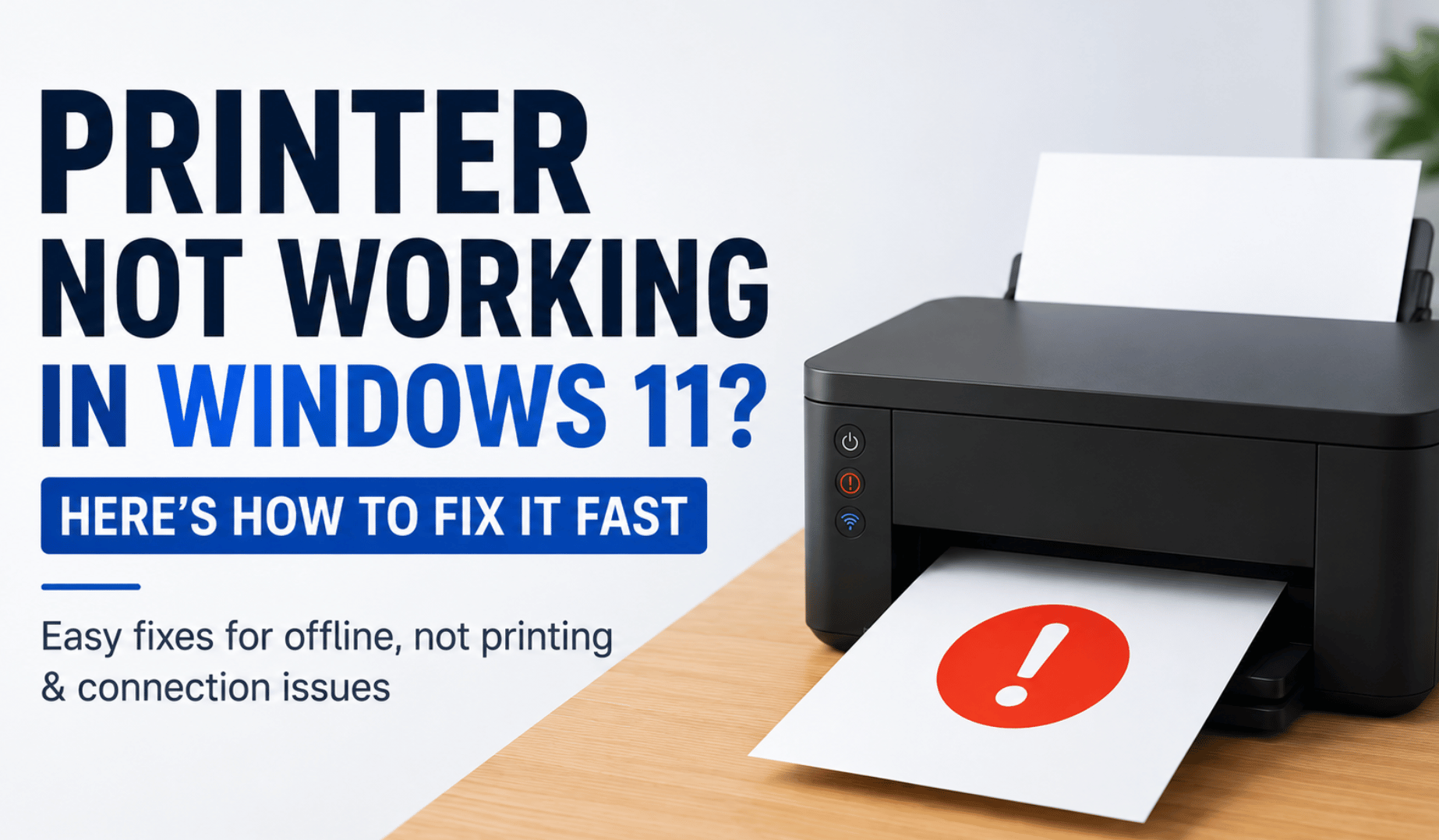
If your printer is not working in Windows 11, shows as offline, or refuses to print, you’re not alone. This often happens after something changes — like a Windows update, switching Wi-Fi networks, or even just turning your printer off and on. For example:
- You changed your router, and now your wireless printer won’t connect.
- Your printer was working yesterday, but now it’s suddenly “offline”.
- You click print, but nothing happens — or jobs get stuck in the queue.
The good news is that most printer issues can be fixed with a few simple steps. Start with the quick checks, then move through the guide until your printer works again.
For a complete overview of device troubleshooting in Windows 11, including headsets, external monitors and more, check out my post Fix Common Peripheral Issues in Windows 11.
Common Printer Problems in Windows 11
If your printer isn’t working, you might be experiencing one of these:
- Printer shows as offline even though it’s turned on.
- Nothing happens when you click print.
- Print jobs are stuck in the queue.
- Printer is connected but not responding.
- Printing starts, but no paper comes out.
Don’t worry! The steps below are designed to fix all of these situations.
Try the quick fixes that solve most problems.
Before going deeper, try the basics:
- Check cable connections.
- Restart your computer and printer.
- Turn the printer off, unplug it for 30 seconds, then turn it back on.
If using Wi-Fi, confirm the printer is connected:
- On the printer screen: Go to Settings > Network / Wi-Fi > Status and confirm your network name.
- On your computer: Go to Settings > Printers & scanners and make sure the printer is not Offline.
An alternative method for modern printers is using native apps like HP Smart, Canon PRINT, or Epson Smart Panel because they often show connection status more clearly. If you used one of these apps during the initial printer setup, open the app, log in if needed, and check the printer status there as well.
Try Printing a Test Page
This helps confirm if Windows can communicate with your printer in general. If the test page fails, the issue is likely related to Windows, drivers, or the connection — not the document you are attempting to print. The exact steps to print a test page are:
- Go to Settings > Printers & scanners.
- Select your printer.
- Click Print Test Page.
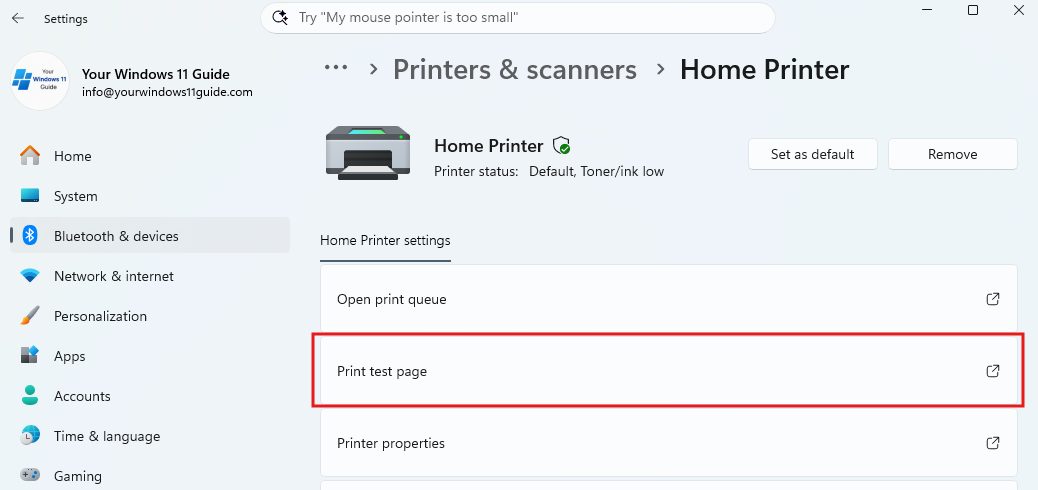
To Rule Out Document Issues – Try Printing a Different File
Sometimes the problem isn’t the printer — it’s the file you’re trying to print. This is especially common if printing starts but fails halfway through, or if nothing comes out at all. Try this:
- Print a simple Word or PDF document.
- Print a different file type (for example: PDF instead of Word, or image instead of PDF).
If you confirmed that a different file prints successfully, try saving the problematic file in a different format and then print it again.
Make Sure the Correct Printer Is Set as Default
Windows may automatically switch your default printer. And this happens very often – instead of your actual printer, the document may be sent to “Microsoft Print to PDF”.
Step 1: Disable automatic switching
- Go to Settings > Printers & scanners
- Turn OFF: “Let Windows manage my default printer”
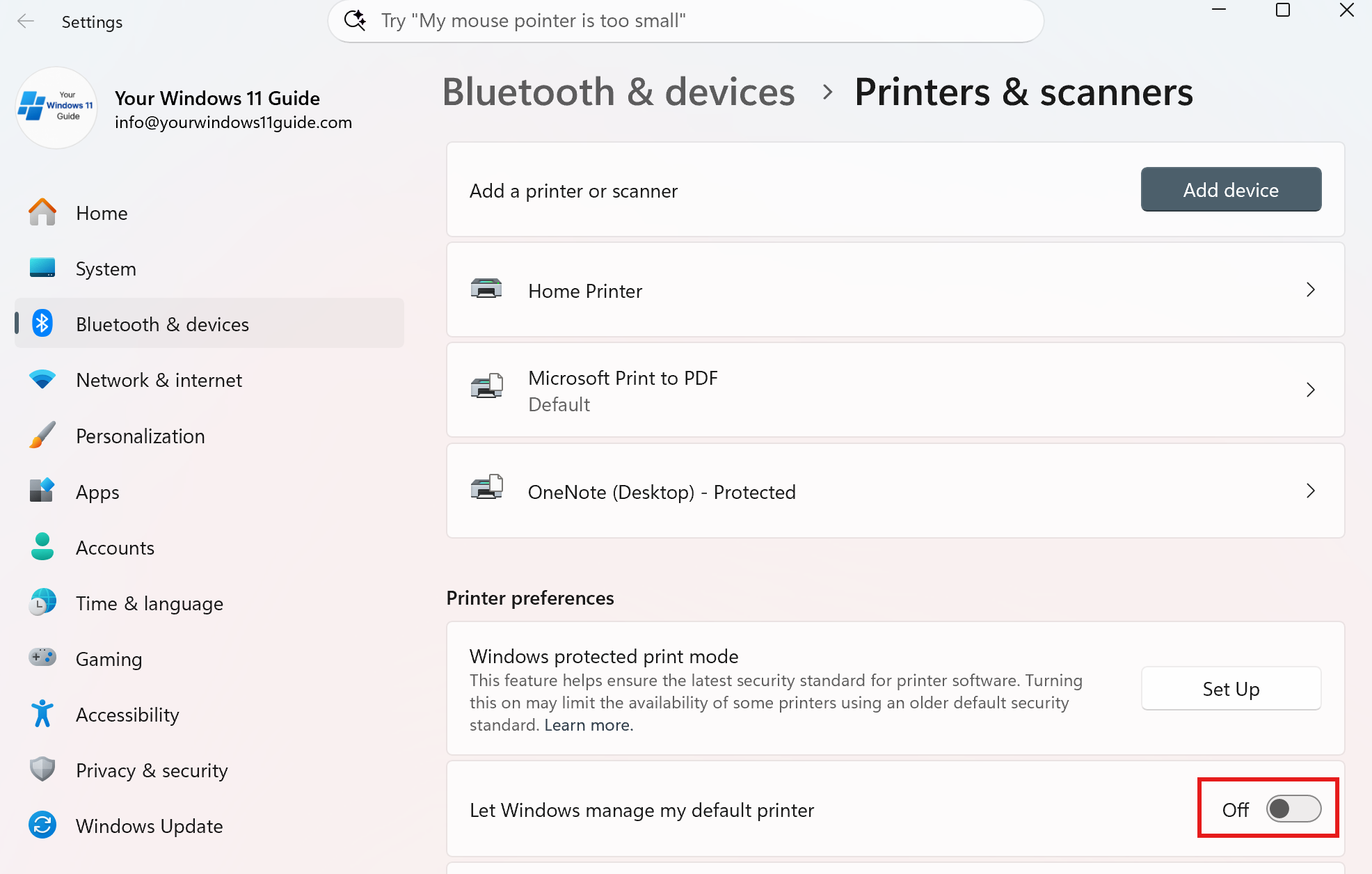
Step 2: Set your printer manually
- Select your printer
- Click Set as default
Restart the Print Spooler
The Print Spooler manages all print jobs. If it gets stuck, printing stops completely. The most common reasons this happens are corrupted print files, driver conflicts after updates, or simply too many queued print jobs.
How to restart the Print Spooler in Windows 11:
- Press Win+R
- Type services.msc and press Enter
- Find Print Spooler
- Right-click > Restart
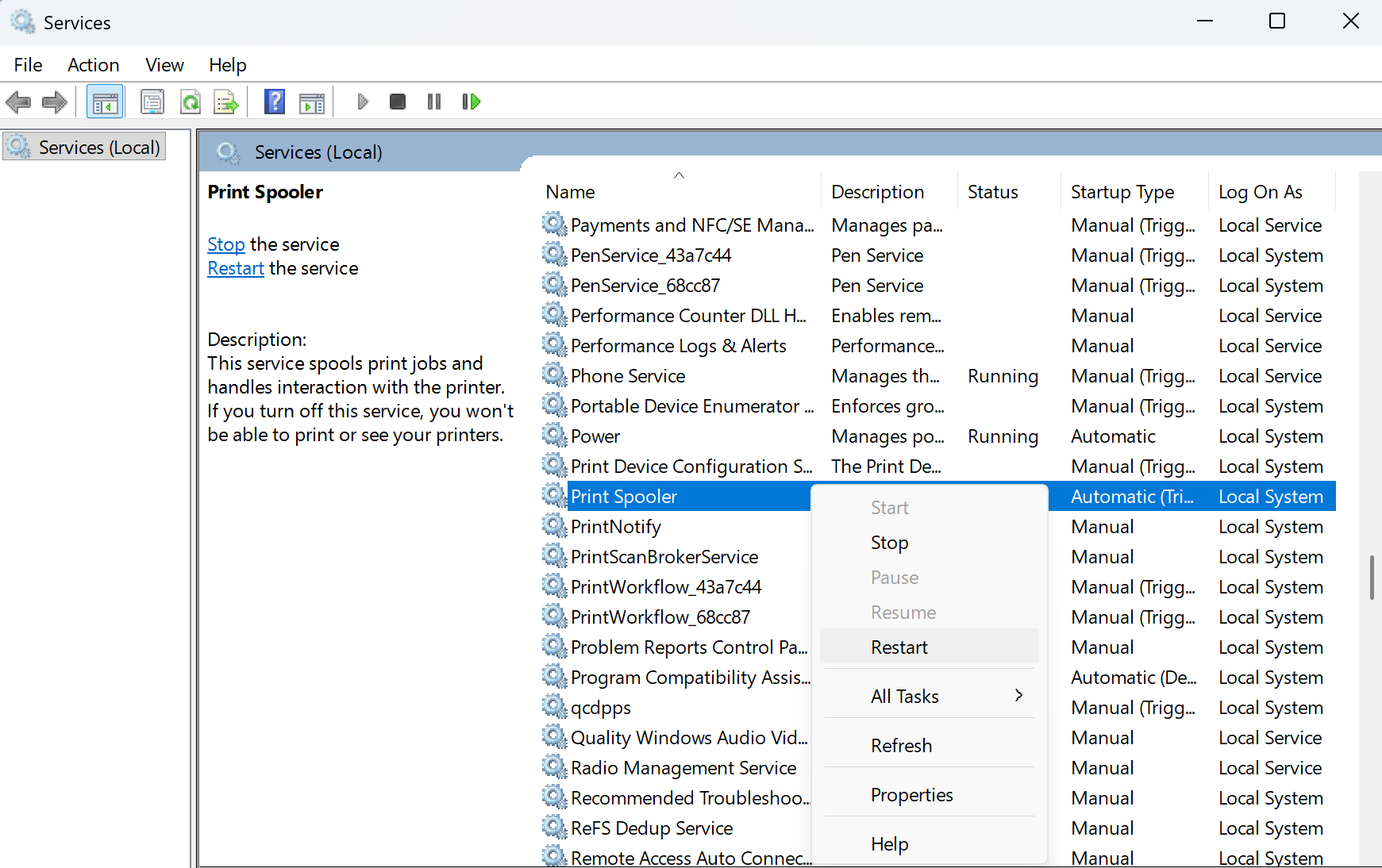
If your print jobs are stuck and nothing prints, this is often caused by a frozen print queue. If needed, clear the spooler manually:
- Open services.msc
- Stop Print Spooler
- Go to: C:\Windows\System32\spool\PRINTERS
- Delete all files
- Start Print Spooler again
Remove and Re-Add the Printer
If your printer keeps disconnecting, shows as offline, or does not respond properly even after basic troubleshooting, removing and re-adding it can often resolve the issue. This refreshes the connection between Windows, the printer, and the installed drivers.
Step 1: Remove the printer
- Go to Settings > Printers & scanners
- Select your printer
- Click Remove device
Step 2: Add the printer again
- Click Add device.
- Wait for Windows to search.
- Click Add device when your printer appears.
If you originally installed the printer using its native app, it’s recommended to use the same app again when reconnecting the printer instead of relying only on Windows settings. In many cases, these apps install drivers automatically and make the setup process easier. Common examples include HP Smart, Canon PRINT, and Epson Smart Panel.
Update or Reinstall Printer Drivers
After a Windows update, older drivers may stop working properly. Start with updating the drivers and if needed – reinstall the drivers.
How to update printer drivers:
- Right-click Start > Device Manager.
- Expand Printer queues.
- Right-click your printer > Update driver.
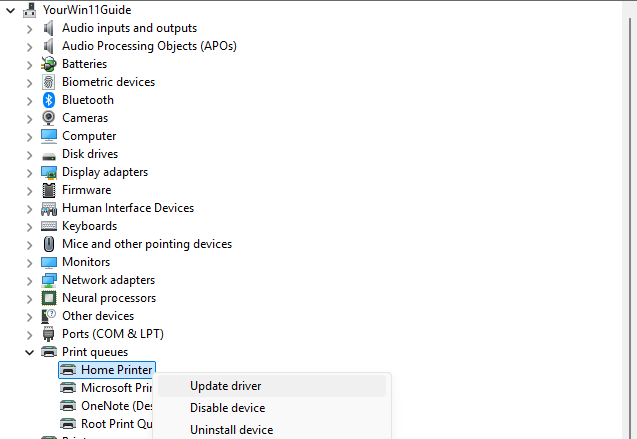
How to reinstall printer drivers:
- Visit your printer manufacturer’s website.
- Download the latest driver for Windows 11.
- Install it manually.
Fix Wi-Fi Printer Issues in Windows 11
Wireless printers are convenient, but they are also more sensitive to network changes. Make sure the printer is connected to the same Wi-Fi network as your computer and that the signal is stable.
One of the most common reasons a printer suddenly goes offline is after a router change. If you recently replaced your router, reconnect the printer by following the steps below:
- Open printer settings
- Go to Wireless / Network Setup
- Select your Wi-Fi network
- Enter the password
If the initial setup was completed using the printer’s native app, open the app and reconnect the printer to the correct Wi-Fi network from there as well.
When It Might Be a Hardware Issue
If the printer starts but no paper comes out, this is often a physical issue rather than a Windows problem. Try the below:
- Check for paper jams or empty trays.
- Look for warning lights or error messages.
- Try connecting the printer to another computer.
Wrapping Things Up
Most printer issues in Windows 11 are caused by connection problems, stuck print jobs, driver conflicts, or network-related issues. Starting with the quick fixes first can save a lot of time, especially when the issue is something simple like the printer being offline or connected to the wrong Wi-Fi network.
If the problem continues, work through the rest of the steps in order. In most cases, one of these solutions will get your printer working again without needing professional repair or advanced troubleshooting.
Printers can sometimes be frustrating, especially after Windows updates or router changes, but the good news is that the majority of issues are software or connection related and can usually be resolved in just a few minutes.
For broader troubleshooting across devices you can also check out my post – Fix Common Peripheral Issues in Windows 11.