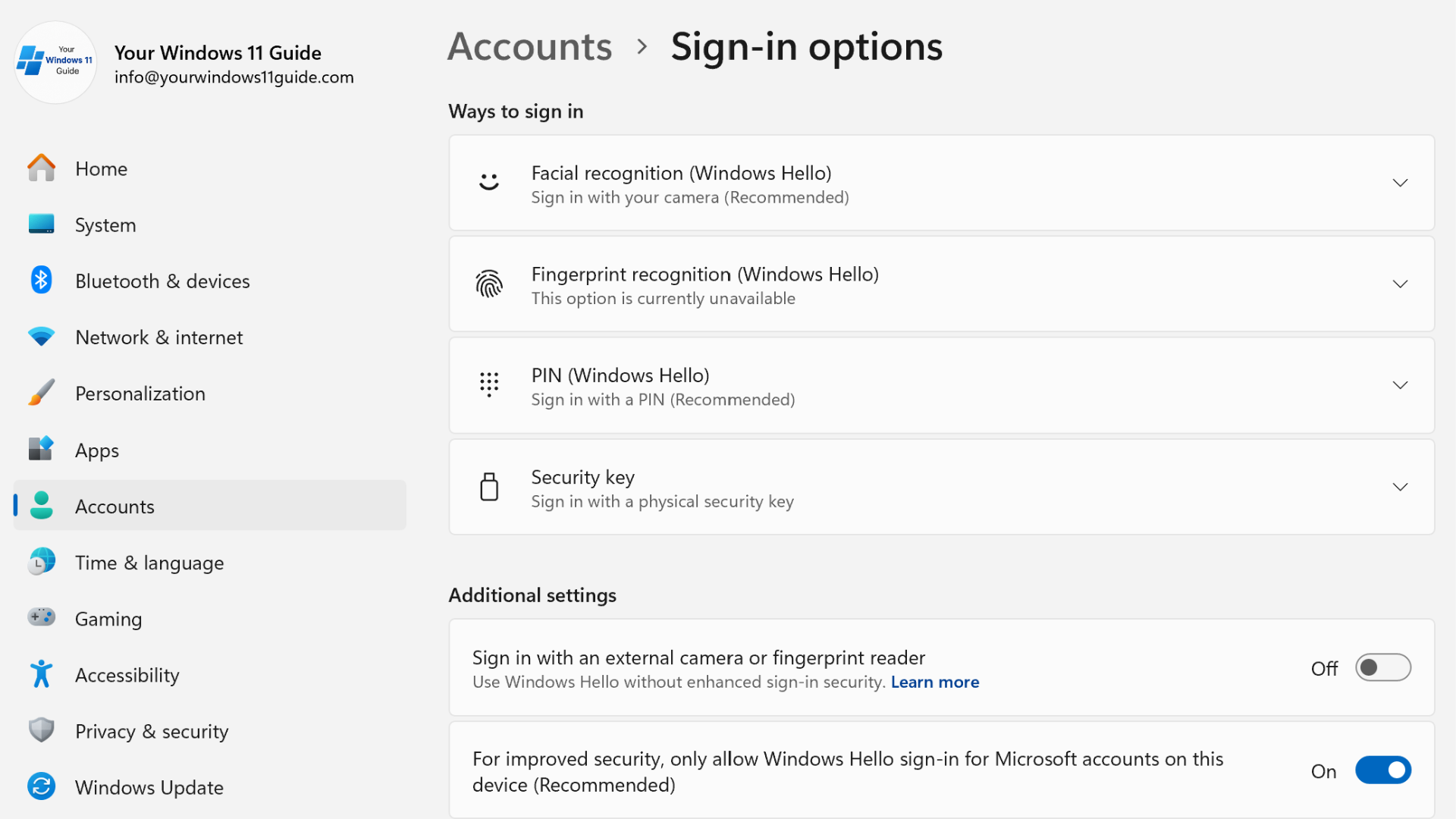
When I think back to older versions of Windows, it still amazes me how far we’ve come with sign-in security. Years ago, most people didn’t even set a password. Windows booted straight to the desktop, and users considered that normal. Then passwords became standard. Later, Windows introduced PINs, and eventually laptops started shipping with fingerprint readers. Facial recognition completed the move toward modern sign-in.
On my Copilot+ PC, I use two different Windows profiles. One of them uses facial recognition, and the second relies on a PIN, because Windows Hello prevents you from registering the same face across two different accounts on the same device. We’ll talk more about that later, but it’s a perfect example of how Windows Hello works in reality and why some limitations exist. This guide will walk you through what Windows Hello in Windows 11 is, how each sign-in method works, how to set it up, and how to fix Windows Hello issues you may run into.
What Windows Hello Is and How It Works
Windows Hello is Microsoft’s modern and secure replacement for the traditional Windows password. Instead of typing the same credential every day, Windows Hello lets you sign in using faster and safer methods tied directly to your device. These include:
- A PIN, fingerprint or facial recognition.
- A physical security key.
- Passkey for supported websites. This is not really a Windows sign-in method, but it makes logging into websites easier. A passkey relies on Windows Hello because you must authenticate with your PIN, fingerprint or face before the passkey can be used.
Windows keeps all of these methods local to your PC. Your biometric data never leaves the device, and the TPM chip actively protects it behind the scenes. Windows Hello delivers significantly stronger security than traditional passwords.
Windows Hello Options Explained
1. PIN – The core of Windows Hello
Every Windows Hello setup begins with a PIN. Windows stores the PIN locally on your device and never syncs it to the cloud. Also, it acts as the fallback whenever biometrics fail. Windows uses the PIN not only to unlock your device but also to approve admin actions, resetting biometrics, logging into apps like Outlook or OneDrive and authenticating passkeys. The key facts below explain how Windows Hello PINs function:
- Each Windows account has its own unique PIN.
- Two accounts can use the same numbers, but they remain separate PINs internally.
- If you forget your PIN, you can reset it using your Microsoft account password.
- The PIN is the backbone of Windows Hello – all other sign-in methods depend on it, that’s why the “Remove the sign in option” is grayed out on my screenshot below.
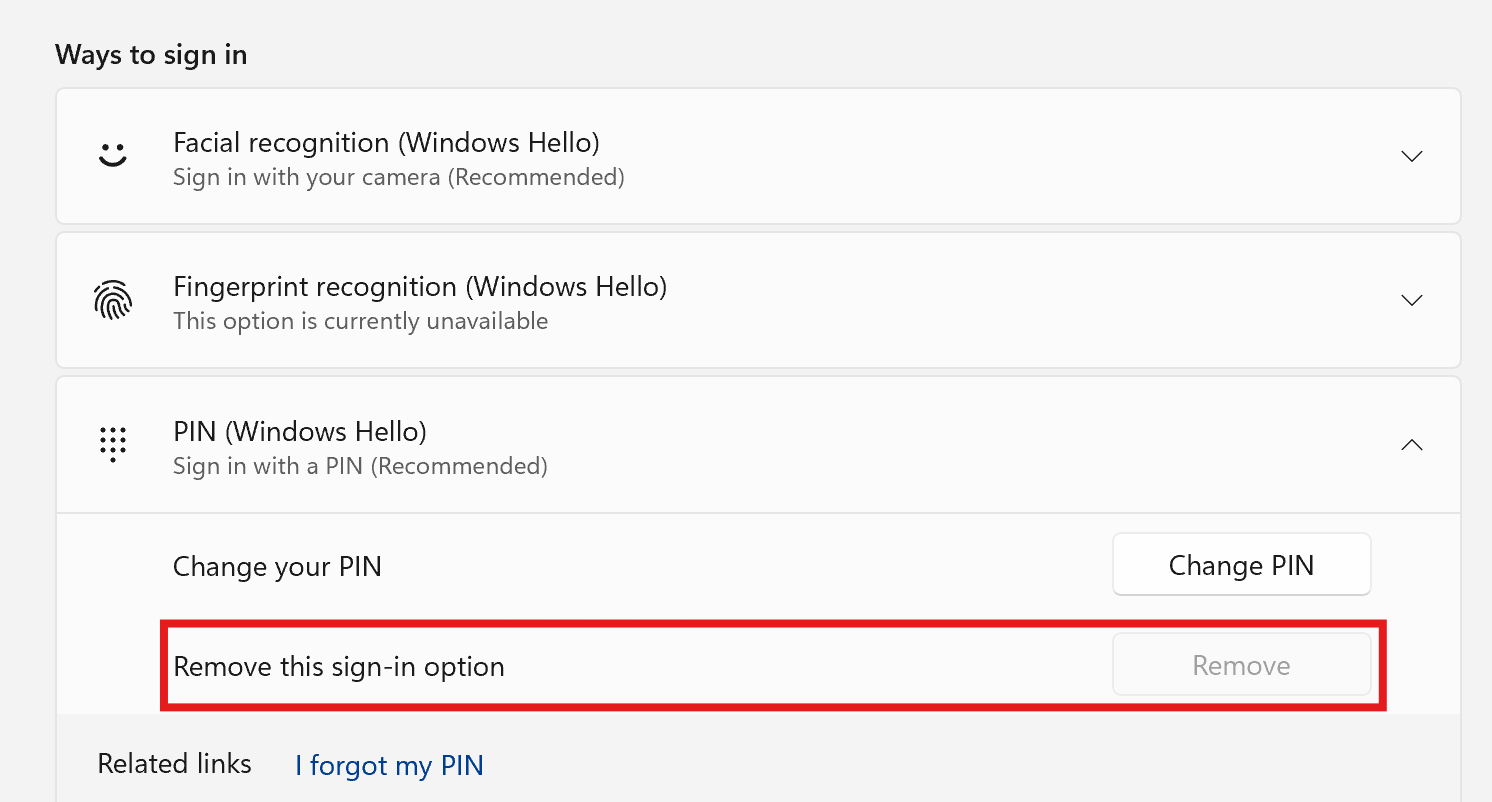
You can only have one PIN per Windows account. You can change, reset or remove your existing PIN by going to Settings > Accounts > Sign-in options > PIN (Windows Hello). Any change replaces the previous PIN instantly.
Why is “Remove PIN” greyed out or password sign-in missing?
In Windows 11, the PIN can become the required local sign-in method for the device. When this happens, Windows hides the password option on the sign-in screen and disables the ability to remove the PIN, even if other Windows Hello methods like face or fingerprint are turned off. This is a device-level security behavior, not a bug.
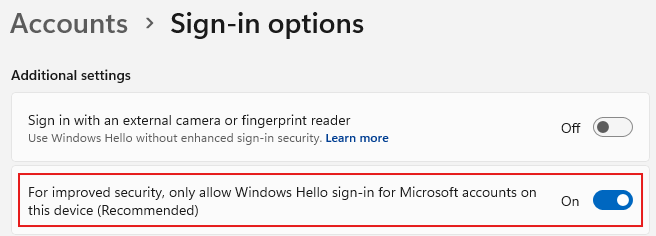
You can try turning off “For improved security, only allow Windows Hello sign-in for Microsoft Accounts on this device” in Settings > Accounts > Sign-in options (under Additional settings) then signing out and restarting. If the option remains unavailable, Windows is still enforcing the PIN as the active local credential on this device.
2. Fingerprint Sign-In
Fingerprint authentication remains one of the fastest and most reliable methods. It allows instant unlocking, quick user switching from the lock screen, and seamless approval of passkey authentication inside apps. Below are some important details about fingerprint sign-in on shared laptops:
- Each Windows account can register multiple fingerprints.
- Two accounts cannot register the same physical finger.
- Fingerprints automatically select the correct user.
I’ve relied on fingerprint unlock for years, especially on my previous Dell laptop that was shared. It was incredibly convenient to tap the sensor after locking the screen and jump right back into my session without typing anything.
3. Facial Recognition (Windows Hello Face)
Facial recognition is the most convenient Windows Hello method. You open the lid, look at the screen, and Windows signs you in almost instantly. It works well for daily login, quick authentication and fast account switching. But Windows Hello Face also has specific rules, and this is where many users get confused. Based on Microsoft’s design and my own testing on a Copilot+ PC, here’s what Windows Hello allows and blocks:
- Windows allows different accounts to register different faces on the same device. I tested this myself: one account can use Face A, and another account can successfully register Face B. Windows stores each facial template separately and automatically signs in to the correct profile when it recognizes the person sitting in front of the camera.
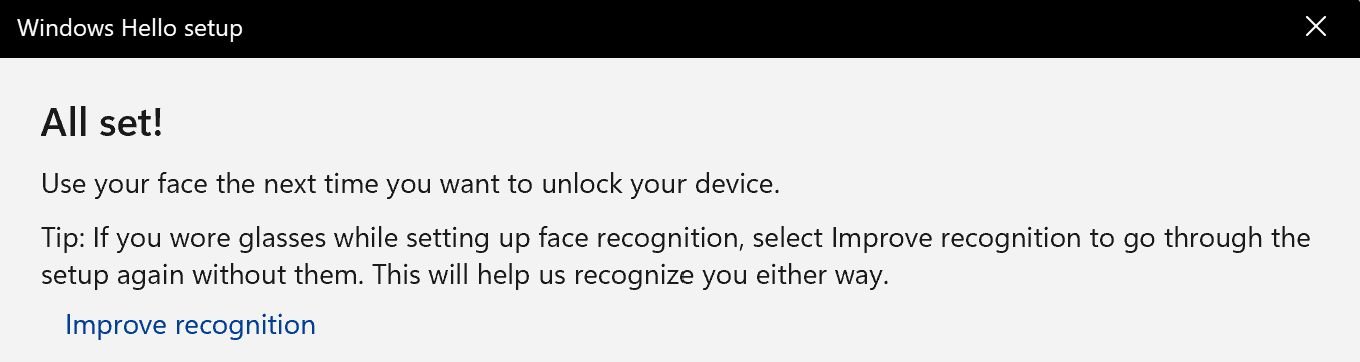
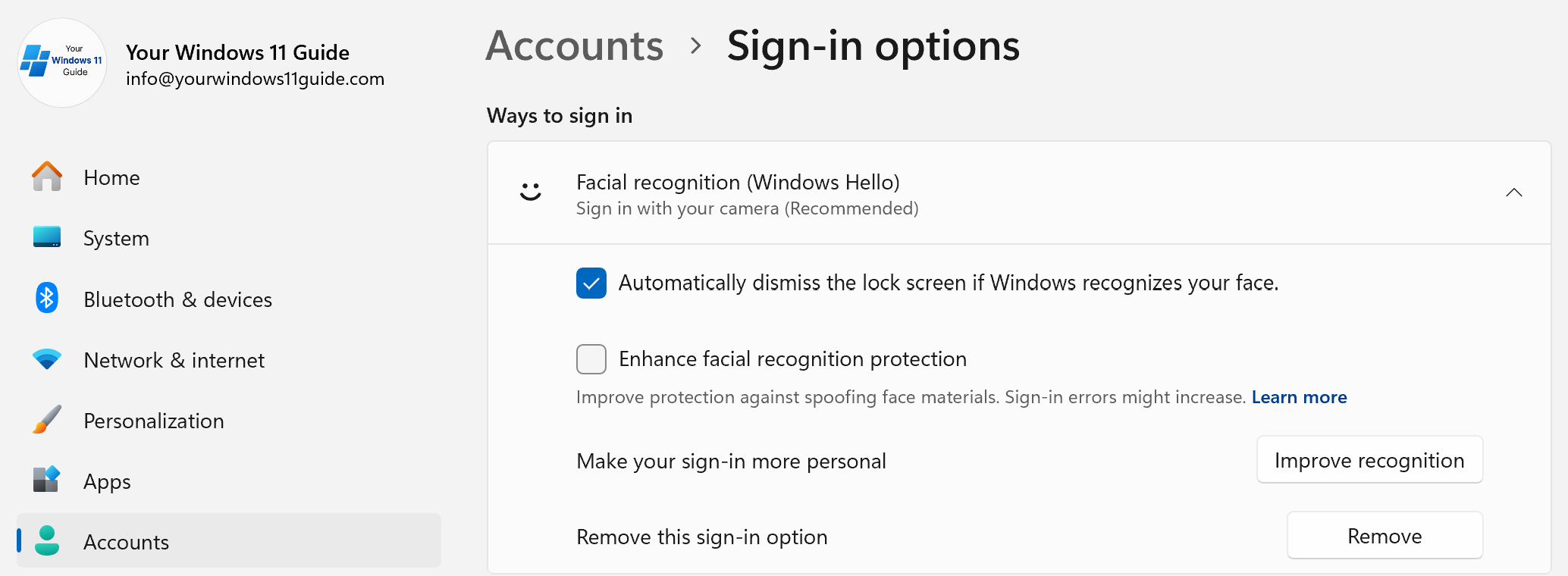
- A single Windows account supports only one facial profile, and Windows does not allow adding a second face. Each account can store only one facial profile, and Windows simply does not offer an option to add a second face. The “Add another face” button does not exist in the Settings menu, which clearly shows that a single account is limited to one facial enrollment.
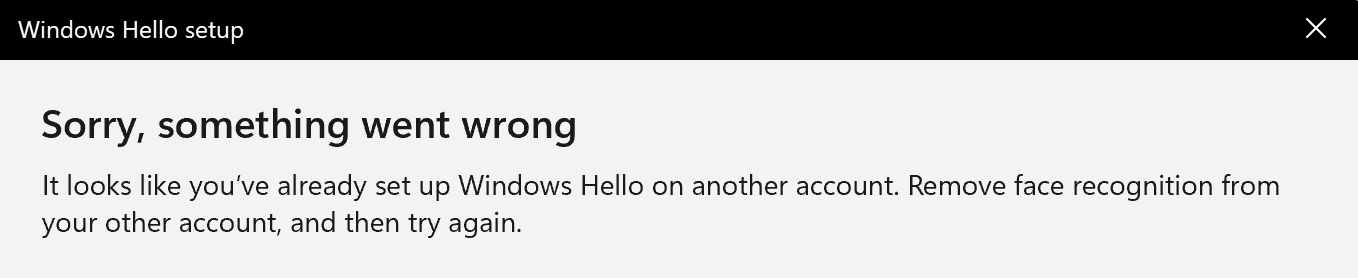
- The same face also cannot be used across multiple Windows accounts on the same device. If you try to register your face under a second account, Windows will detect that the biometric data already exists and block the setup.
4. Security Keys
Hardware security keys such as YubiKey or Feitian provide extremely strong authentication. They can be used for signing into Windows, passwordless login across services like Microsoft, Google, and GitHub, and for two-step verification in high-security environments. On Windows 11, every account can register its own security key or share the same physical key if needed. This makes them flexible for both personal use and multi-user setups.
As a backup sign-in method, security keys provide instant access if your PIN stops working, biometrics fail or your password icon disappears (yes, it happens). Plugging in the key instantly unlocks the device. It’s simple, reliable and immune to most user errors.
5. Passkeys
Passkeys are quickly becoming the modern replacement for traditional passwords, and Windows Hello is the system that makes them work. They don’t function as a Windows sign-in method, but Windows Hello directly links them to device authentication.
A passkey lets you log into supported websites and apps using PIN, fingerprint or facial recognition instead of typing a password. This makes sign-in faster, more secure and resistant to phishing. Windows 11 already supports passkeys on major services such as Google, Microsoft accounts, PayPal, GitHub, TikTok, eBay and Amazon (currently rolling out). When a site offers “Sign in with passkey,” Windows Hello handles the authentication automatically.
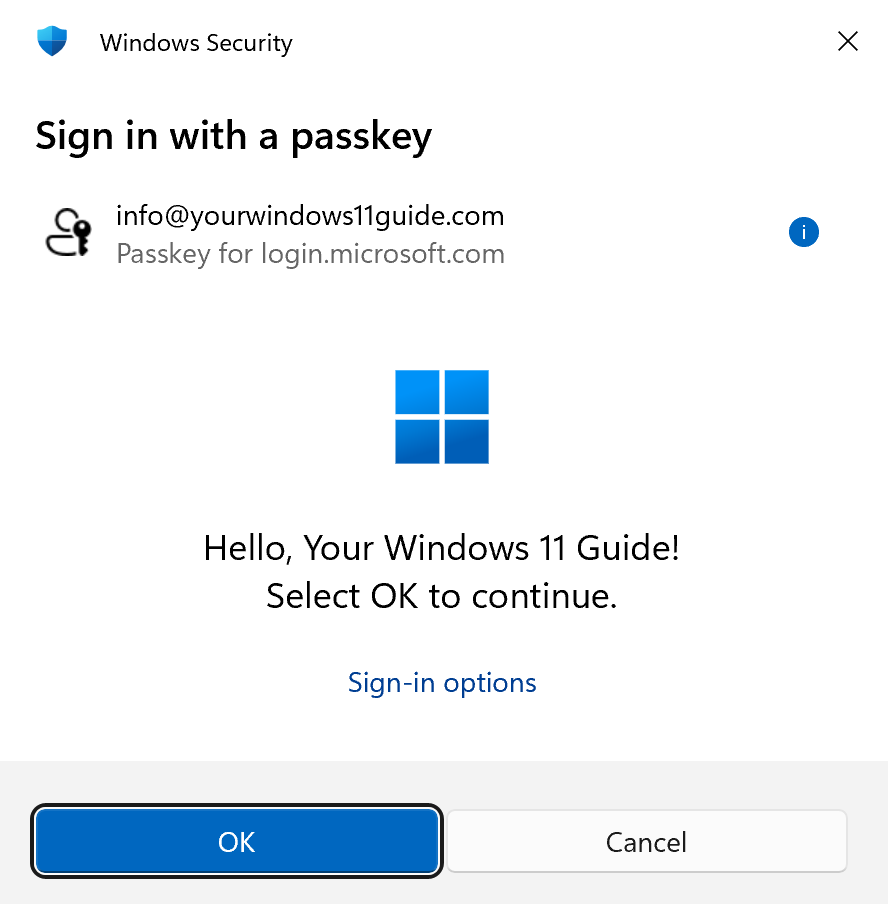
You can manage all saved passkeys by opening Settings > Accounts > Passkeys. From here, you can view, delete or update website passkeys when you need to.
I go into more detail about how passkeys behave in real use, how they’re managed in Windows, and what issues you might run into in my dedicated post about passkeys in Windows 11.
Troubleshooting Windows Hello
Windows Hello is reliable, but issues do happen, especially after major updates, driver changes or long sleep sessions. The good news is that you can fix most problems quickly. As a general rule, always keep at least two sign-in methods enabled (for example PIN + fingerprint or PIN + face), and remember your Microsoft account password because it’s required for PIN resets. Here are the most common Windows Hello issues and the exact steps you can follow to fix them.
1. Forgot your PIN
One of the most frequent problems occurs when Windows suddenly asks for your PIN after an update, and you simply don’t remember it because you rely on your face or fingerprint daily. The fix is straightforward:
- Select I forgot my PIN
- Enter your Microsoft account password
- Create a new PIN
- Restart your device
If you also forget your Microsoft account password, you must reset it online before setting a new PIN.
2. Facial recognition stops working after an update
Sometimes Windows Hello Face stops working after a Windows update or driver change. You may see the camera turn on, but Windows fails to recognize your face. Follow these steps in order, starting with the simplest fixes.
Step 1: Restart Your PC
A surprising number of Windows Hello issues resolve after a full reboot, especially after updates or driver installations. Restart once and try face sign-in again before continuing.
Step 2: Re-enroll your face
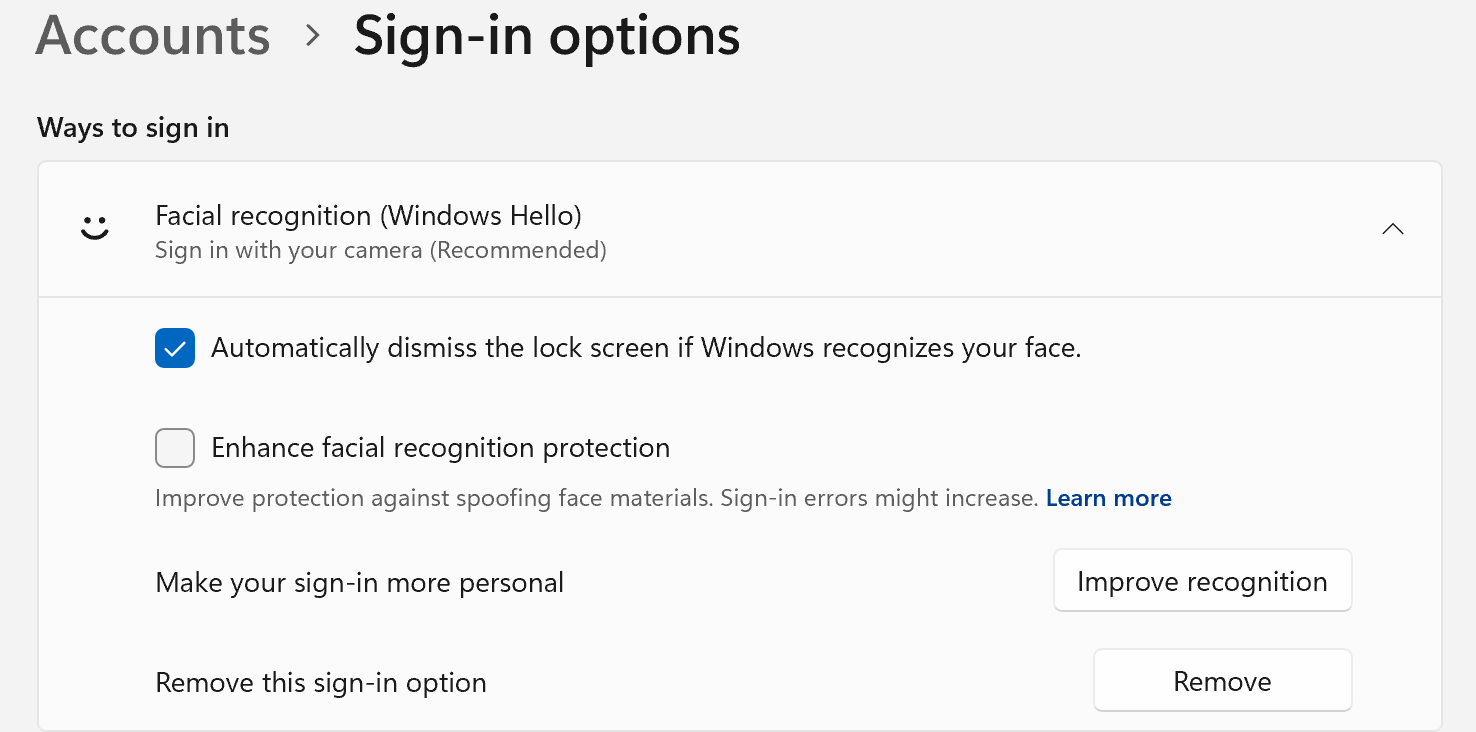
- Go to Settings > Accounts > Sign-in options > Facial recognition
- Select Remove
- Click Set up and enroll your face again in good lighting
If this fixes the problem, you’re done. If it still doesn’t work, continue below.
Step 3: Update or reinstall camera and biometric drivers
Go to Device Manager and update the following:
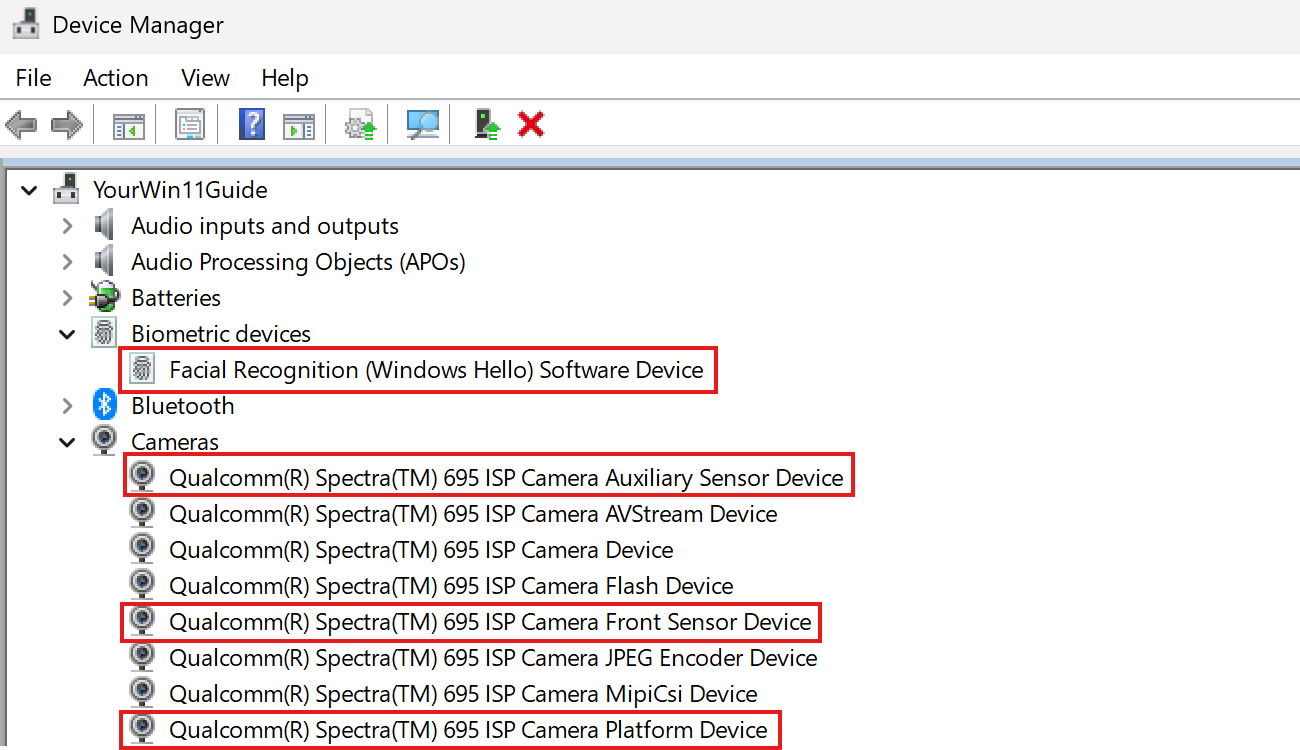
A. Biometric Devices > Facial Recognition (Windows Hello). This is the Windows Hello engine. If it’s outdated, face sign-in may fail.
B. Cameras. This depends on the type of Windows 11 device:
- On Intel/AMD laptops: Update IR Camera and RGB Camera if listed.
- On Copilot+ PCs: There is no standalone “IR Camera”. Instead, update Front Sensor Device, Platform Device, Auxiliary Sensor Device (if present). These work together to provide the IR depth sensing used by Windows Hello.
3. Fingerprint sensor becomes unreliable
Fingerprint issues often appear after waking the device from sleep or after updates. The sensor may stop registering or require multiple attempts. How to fix it:
- Clean the fingerprint sensor
- Go to Settings > Accounts > Sign-in options > Fingerprint Recognition
- Remove all existing fingerprints
- Re-register your fingerprints (registering the same finger twice improves accuracy)
- Update the fingerprint driver in Device Manager → Biometric Devices
Once fingerprints are re-enrolled, accuracy improves immediately.
4. Windows Hello options disappear from Settings
Sometimes “Facial recognition” or “Fingerprint recognition” disappears from Settings > Accounts > Sign-in options. This typically happens when:
- A Windows update installed partially
- A driver was removed or replaced
- The TPM is not recognized
- Windows cannot detect the camera or fingerprint hardware
Follow these steps to fix the issue properly.
Step 1: Make sure Windows is fully updated
Windows Hello relies on system components that are updated through regular Windows updates, so the first step is to confirm that your system is fully up to date. Open Settings, go to Windows Update, and select Check for updates. Install all available items, including cumulative updates, optional driver updates, and firmware updates. Once everything is installed, restart your laptop and check again to see if the missing Windows Hello options return.
Step 2: Reinstall camera, fingerprint and chipset drivers
Missing or incompatible drivers often cause Windows Hello options to disappear. To fix this, visit your laptop manufacturer’s support page and download the latest chipset, camera, and fingerprint driver packages. Install each one, then restart your laptop. In many cases, the chipset and camera drivers alone are enough to restore missing Windows Hello options as soon as Windows detects the hardware properly again.
Step 3: Check that Windows detects the TPM
Windows Hello uses the TPM to secure biometric data. If the system disables or cannot detect the TPM, Windows removes face and fingerprint options from Settings. To confirm that it’s working, press Win + R, type tpm.msc, and press Enter. If the TPM is functioning correctly, you’ll see messages such as “The TPM is ready for use,” along with manufacturer details and a version number like 2.0.
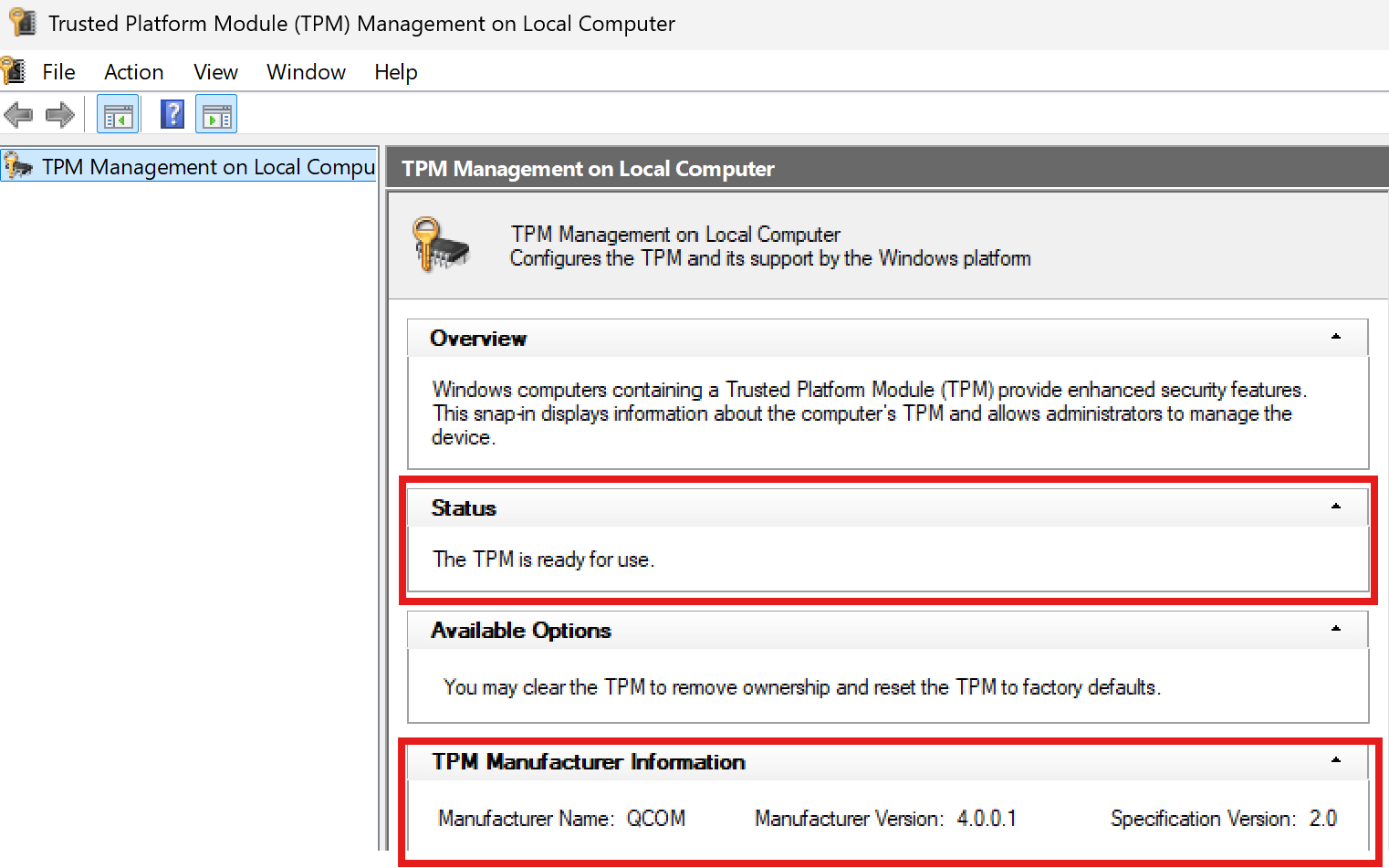
If instead you see “TPM cannot be found,” restart your PC, enter the BIOS using the appropriate key for your device (such as F2, Delete, or F10), and make sure the TPM setting (sometimes listed as TPM, PTT, or fTPM) is enabled.
Step 4: Check Device Manager for missing hardware
If Windows cannot see the camera or fingerprint sensor, Hello options will not appear. Open Device Manager and look for:
- Biometric Devices
- Cameras
- Human Interface Devices
- Security Devices (TPM)
If anything has a yellow warning icon:
- Right-click > Uninstall device
- Restart your PC
- Windows will reinstall the driver automatically
- If not, install the manufacturer’s driver package manually as shown in Step 2 above.
Step 5: Restart and check Sign-in Options again
After reinstalling drivers and confirming that the TPM is working, restart your PC and return to Settings > Accounts > Sign-in options. In most cases, Windows Hello options such as Facial recognition and Fingerprint reappear automatically once Windows detects the hardware correctly.
5. Password icon missing after a Windows Update
On some Windows 11 builds, a visual glitch in the Windows logon process causes the password sign-in icon to disappear from the lock screen. This isn’t a Windows Hello problem, the password feature itself still works, but it can be confusing if you normally rely on entering your password instead of using a PIN or biometrics.
If this happens, click the blank space where the password icon should be, because the invisible button still responds. You can also press Ctrl + Alt + Del and choose Sign-in options to reveal the password field immediately.
To wrap things up, here are a few practical recommendations to help you avoid sign-in issues and get the most out of Windows Hello:
- Always remember your Microsoft account password, since you’ll need it if you ever reset your PIN.
- Set up at least two sign-in methods so you’re never locked out.
- If you have multiple accounts on one laptop, remember that the same face cannot be registered for more than one account.
- Use passkeys whenever possible because they’re quickly replacing passwords across the internet.
On my own Copilot+ PC, I use both facial recognition and a PIN, because I have two different Windows profiles and only one of them can use facial sign-in. This setup works smoothly in daily use and is a good example of how Windows Hello can adapt to different situations. Overall, Windows Hello continues to evolve and improve, bringing more reliability, better hardware support and stronger passwordless options with every Windows update.