

By now, you’ve probably heard the name “Copilot” used in many different contexts. Windows Copilot, Copilot in Edge, Copilot in Office apps. This is exactly where confusion starts, especially when Microsoft 365 Copilot enters the picture.
Microsoft 365 Copilot is not the same thing as the free Copilot you can access through Windows or the web. Instead, it’s a paid, app-integrated version of Copilot that works inside Microsoft 365 applications. Rather than answering general questions, it helps you work directly with your own documents, emails, notes and data.
The key difference is context. Microsoft 365 Copilot doesn’t just respond to prompts – it understands what file you’re working in, what conversation you’re reading, or what data you’re looking at. That’s why it behaves very differently from the general Copilot experience and why it can feel significantly more powerful once you start using it properly.
In my previous guide, I covered what Microsoft Copilot is overall and how its different access points work. This post builds on that foundation and focuses specifically on how Microsoft 365 Copilot works inside everyday Office apps, using real examples from how I use it. The goal here is to show where Copilot saves time, where it helps most, and where it still needs a human in the loop.
Using Microsoft 365 Copilot in Word
Microsoft 365 Copilot in Word is where AI becomes valuable for everyday writing. In my workflow, I use it mostly to clean things up and build on what I already have, not to replace the writing process or generate everything from scratch.
I usually start by writing freely and getting ideas down, even if the text is rough or unstructured. Once something exists on the page, Copilot helps me shape it into clearer, more readable content without spending unnecessary time on manual edits.
Where Copilot in Word Helps the Most
Below are the most common ways I use Copilot in Word, along with the kinds of prompts that give reliable, repeatable results.
- Turning a rough idea into a first draft. When I only have a short description, notes, or a partial paragraph, Copilot helps turn that into a usable starting point.
- Example prompt: “Use the text above to create a clear first draft with an introduction, main sections, and a short conclusion. Keep it factual and easy to follow.”
- Summarizing long documents. For long notes, research material, or copied reference text, Copilot helps reduce everything to what really matters.
- Example prompt: “Summarize this document in 5 bullet points and highlight anything that sounds like a decision or important detail.”
- Creating outlines and structure. When ideas feel scattered, Copilot helps organize them before I continue writing.
- Example prompt: “Turn these notes into a structured outline with clear headings and short bullet points under each section.”
- Improving and rewriting existing text. This is where I use Copilot the most. It helps refine wording without changing meaning or tone.
- Example prompt: “Rewrite this paragraph so it sounds clear and detailed, keep my tone, and reduce the length by about 30% without losing the original meaning. Make it easy to understand for someone comparing Microsoft 365 and Office 2024.”

I still review everything Copilot produces. It can occasionally oversimplify or remove nuance, especially in comparison or instructional content. Treating it as a writing assistant rather than a writer keeps the final result accurate and aligned with what I’m trying to say.
Using Microsoft 365 Copilot in Excel
Microsoft 365 Copilot in Excel is most effective when a spreadsheet has too many calculations, or when you need a clear explanation of what the results mean and what stands out.
I don’t use Copilot to build formulas or replace analysis. I use it to analyze results, compare values, identify patterns, and double-check conclusions before making decisions or explaining the data to someone else.
Where Copilot in Excel Helps the Most
These are the main ways I use Copilot in Excel, along with the prompts that consistently give clear and useful output.
- Understanding what the data shows. When I open a spreadsheet with a lot of numbers, Copilot helps translate it into plain language before I dig deeper.
- Example prompt: “Explain what this table shows in simple terms and summarize the main outcome in a short paragraph.”
- Comparing values and spotting issues. I use Copilot as a quick sanity check to compare key values and flag anything that looks off before.
- Example prompt: “Compare the main values in this table and highlight anything that looks inconsistent or significantly different from the rest.”
- Turning numbers into insights I can explain. When I need to explain a spreadsheet to someone else, Copilot helps me turn raw data into clear takeaways.
- Example prompt: “Summarize the key insights from this data in plain language so I can explain it clearly to someone else.”
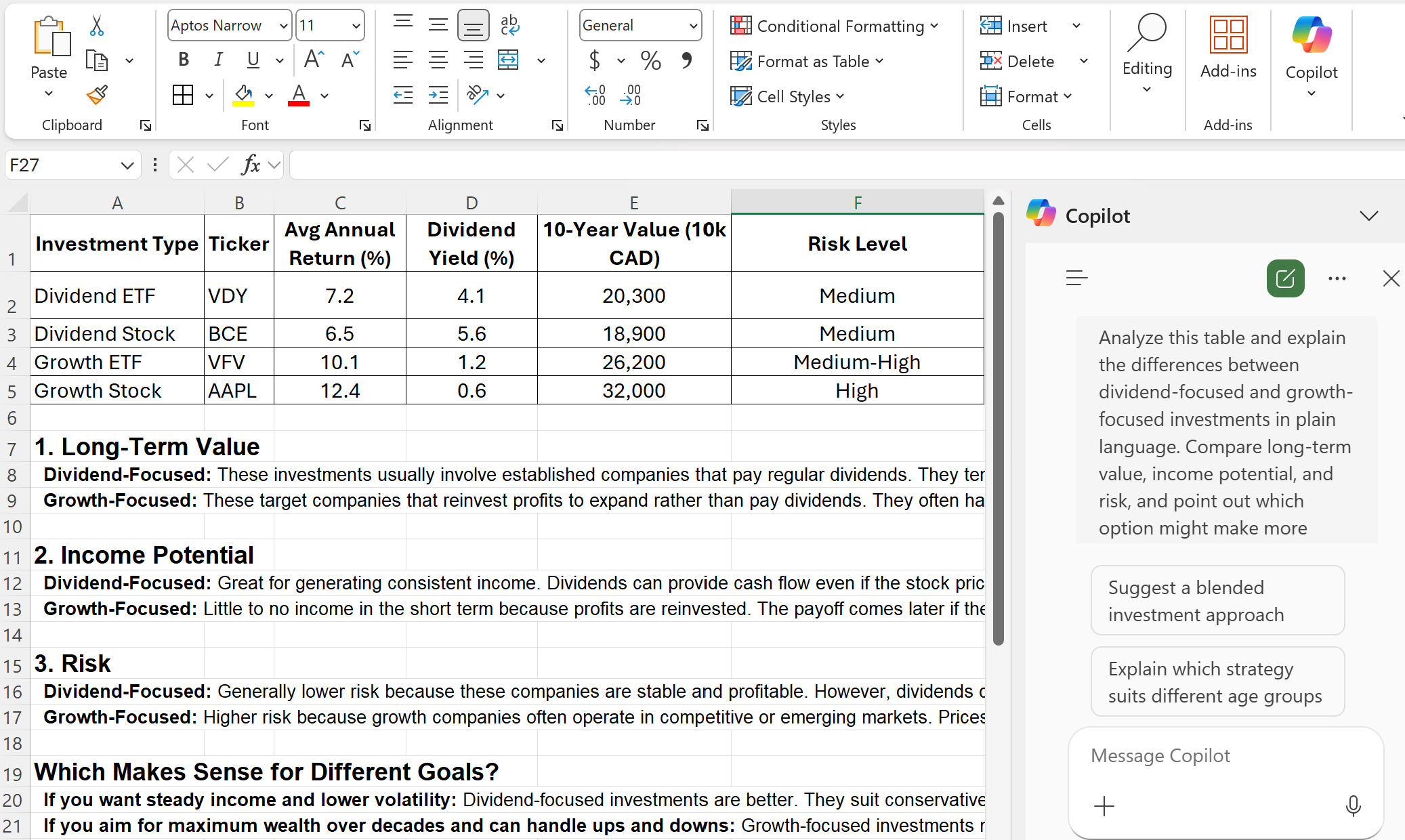
- Comparing different options and outcomes. I use Copilot here to compare results and understand differences without checking every calculation manually
- Example prompt: “Analyze this table and explain the differences between dividend-focused and growth-focused investments in plain language. Compare long-term value, income potential and risk, and point out which option might make more sense depending on someone’s goals.”
Using Microsoft 365 Copilot in PowerPoint
Microsoft 365 Copilot in PowerPoint makes the biggest difference when you want to organize ideas quickly and reduce the time spent staring at a blank slide deck. I use it to structure content, clarify the message, and make sure each slide has a clear purpose before I start adjusting layouts or visuals.
Where Copilot in PowerPoint Helps the Most
Below are the situations where I find Copilot most useful in PowerPoint, along with prompt examples.
- Turning an idea into a slide outline. When I know what I want to present but not how to structure it, Copilot helps create a clean starting point.
- Example prompt: “Create a simple slide outline for a presentation about this topic, with one clear idea per slide.”
- Cleaning up overcrowded slides. If a slide has too much text, Copilot helps simplify it without losing the main point.
- Example prompt: “Rewrite this slide content to be clearer and shorter. Keep the main idea and make it easy to scan.”
- Improving slide flow and messaging. Copilot helps check whether slides flow logically from one to the next, which is useful before presenting to others.
- Example prompt: “Review this slide sequence and suggest improvements to the order so the message flows more logically.”
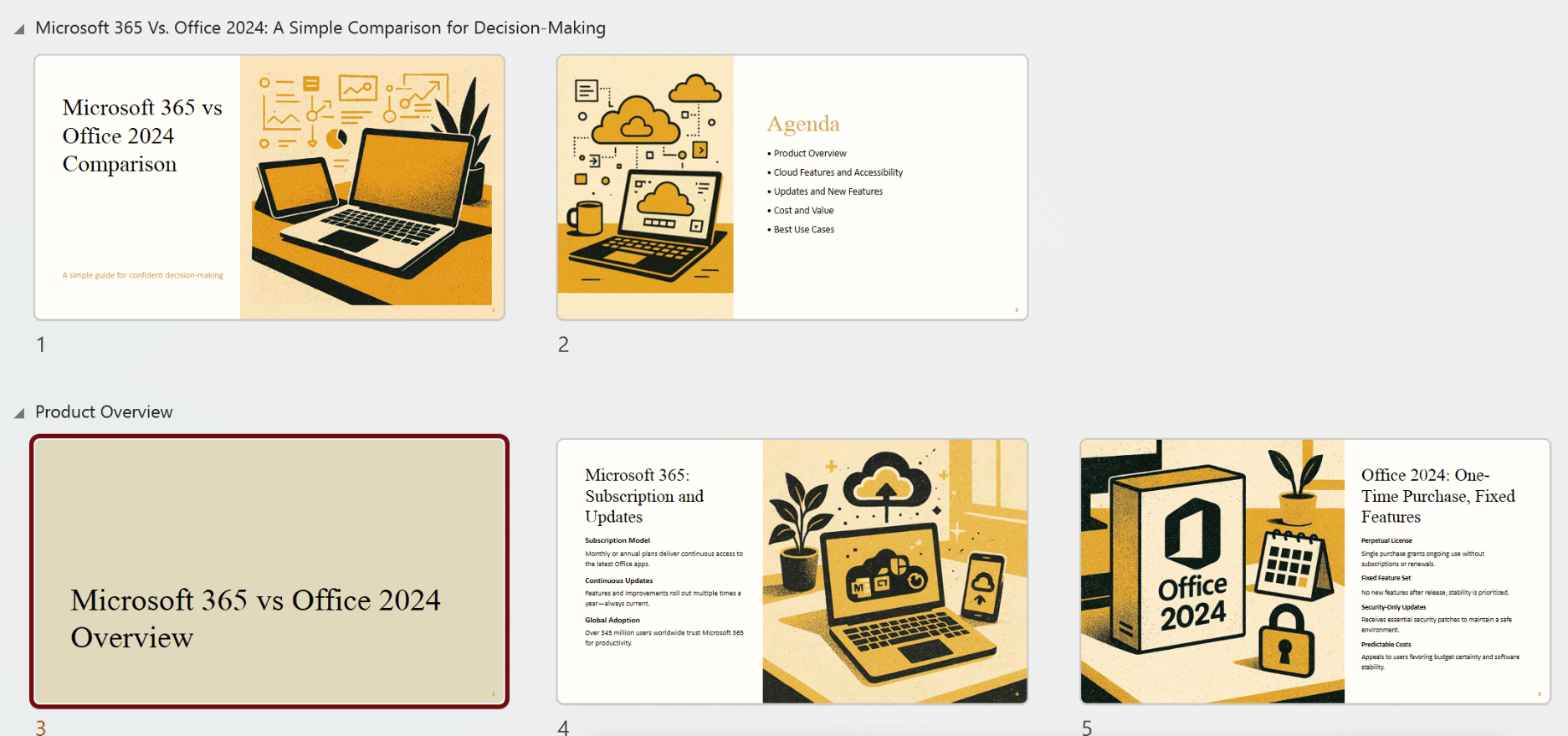
- Creating a comparison presentation. This produces a clean structure that explains the key differences clearly and simply.
- Example prompt: “Create a short slide outline comparing Microsoft 365 and Office 2024. Use one clear takeaway per slide and keep the language simple for someone deciding which option to choose.”
Using Microsoft 365 Copilot in Outlook
Microsoft 365 Copilot in Outlook starts to shine once email threads get long and difficult to follow. It helps surface important points and next steps without manually reading through every reply. Instead of scrolling through replies, Copilot summarizes the conversation and highlights what needs attention. I mostly use it to understand conversations faster, identify action items and make sure I don’t miss something important buried in a long thread.
Where Copilot in Outlook Helps the Most
Below are the main situations where I rely on Copilot in Outlook, along with prompt examples that consistently save time.
- Summarizing long email threads. When a conversation spans many replies, Copilot helps compress everything into a clear overview.
- Example prompt: “Summarize this email thread in a few bullet points and explain the main topic being discussed.”
- Identifying action items and responsibilities. This is one of the most useful Outlook features. Copilot helps clarify what requires action and who is responsible.
- Example prompt: “Review this email thread and list any action items, who they are assigned to, and whether I need to respond.”
- Creating a clear response plan.This helps draft a focused reply that addresses the key points and required actions.
- Example prompt: “Summarize this conversation, then suggest a short, professional reply that addresses the main points and next steps.”
Using Microsoft 365 Copilot in OneNote
Microsoft 365 Copilot in OneNote comes into its own when notes grow over time and finding specific information becomes difficult. It helps locate and update relevant content, summarize notes, and connect ideas, making large notebooks easier to work with.
Where Copilot in OneNote Helps the Most
These are the main ways I use Copilot in OneNote, with prompts that save time and reduce manual searching.
- Summarizing long notes. If notes were taken quickly or across multiple sessions, Copilot helps clean them up into something readable.
- Example prompt: “Summarize this page into clear bullet points and remove any repetition.”
- Pulling key decisions or conclusions from notes. This is useful when reviewing meeting notes or planning documents.
- Example prompt: “Review these notes and list any decisions, conclusions, or next steps that are mentioned.”
- Turning notes into structured content. When notes need to become something more formal, Copilot helps with structure.
- Example prompt: “Turn these notes into a simple outline I could use for a blog post or guide.”
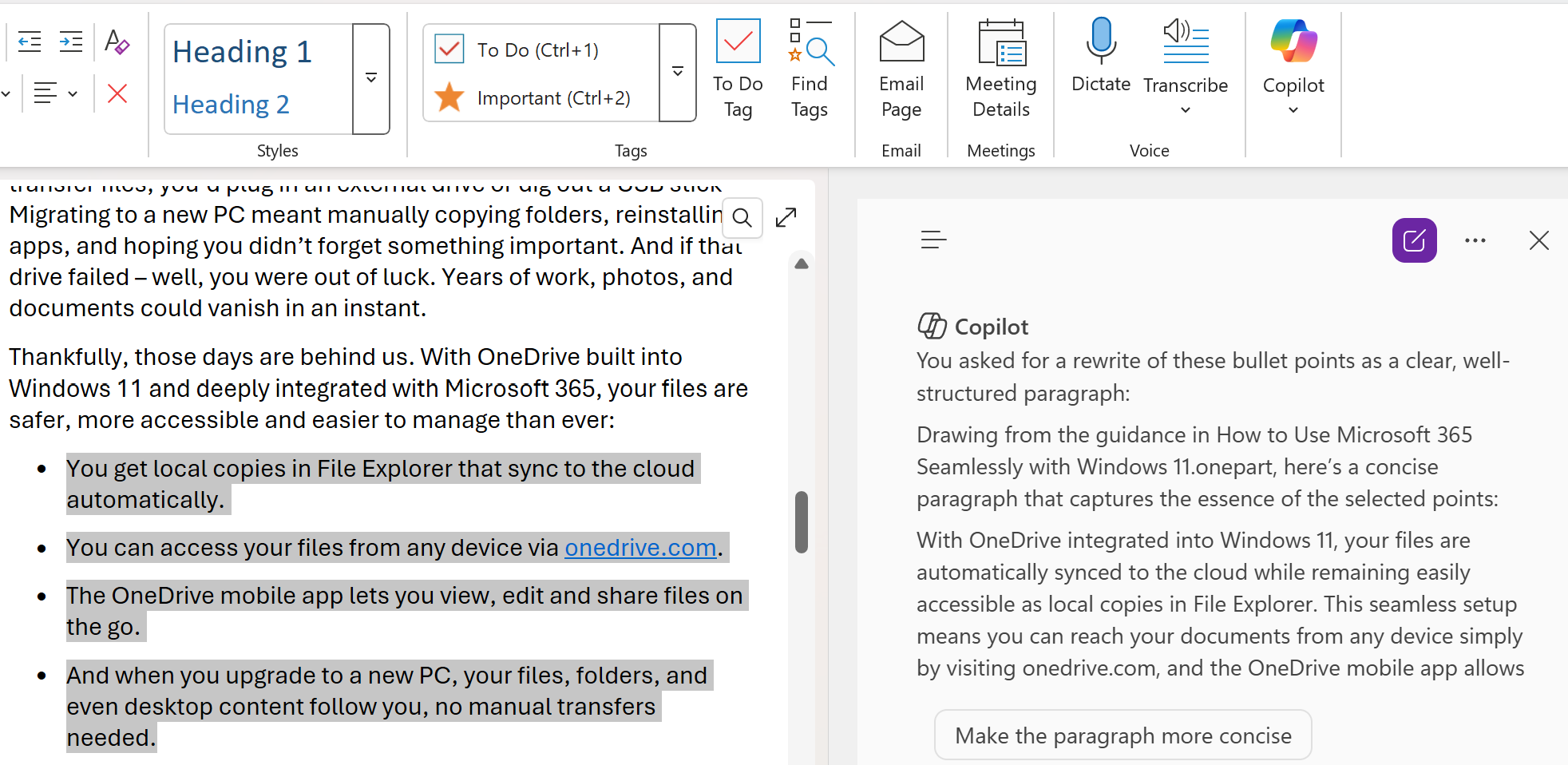
- Rewriting notes between bullet points and paragraphs. When notes are written in one format but need to be presented differently, Copilot can rewrite them without changing the meaning.
- Example prompt: “Rewrite these bullet points as a clear, well-structured paragraph.”
I use Microsoft 365 Copilot every day, and the real value it brings is the speed and clarity. It helps me clean up drafts faster, understand data more easily, and make sense of notes. I still do the thinking. Copilot just helps me get to the useful part sooner.
If you’re new to Copilot, starting with the free version available in Windows or on the web is a great way to get familiar with how it works and where it can help most. Once you want Copilot working directly inside your Microsoft 365 apps and responding to your documents, upgrading becomes a logical next step, and Microsoft outlines the available plans and what’s included on its official Microsoft 365 subscriptions page. If you want a clear overview of what Copilot is, where it’s available, and how the different versions compare, the Copilot essentials guide breaks it down step by step.


